

Use this guide to compare Cyber Monday smart home deals and choose devices that fit your budget, work with your current equipment, and meet your privacy needs. It is for first-time smart home shoppers and people adding devices to an existing setup. Allow 45-90 minutes to check compatibility, compare prices, and review return terms before buying.

Get your next haul delivered free with Prime
- Fast, free delivery on millions of items
- Prime Video, Amazon Music and more included
- Member-only deals all year
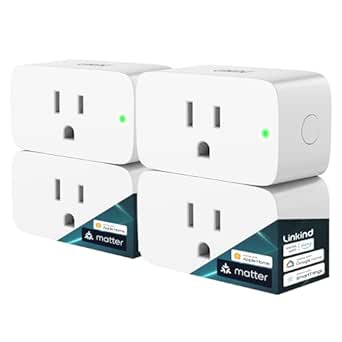
Linkind Matter Smart Plug, Work with Apple Home, Alexa, Siri, Google Home
- ✔ Protocol: Matter over Wi-Fi
- ✔ Wi-Fi: 2.4GHz; IPv6 required
- ✔ Platforms: Apple Home, Alexa, Google Home, SmartThings, AiDot
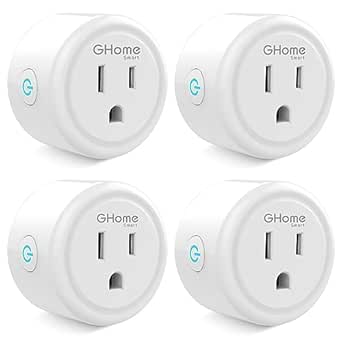
GHome Smart Plug Mini, WiFi Smart Outlet Plug Works with Alexa and Google Home, Timer Outlet with APP Control, 2.4GHz Network Onl…
- ✔ Pack size: 4 plugs
- ✔ Wi-Fi: 2.4GHz only
- ✔ Capacity: 10A, 1200W, 120V
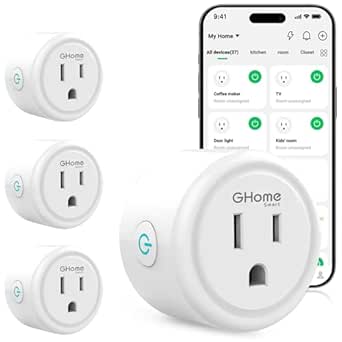
GHome Smart Plug, WiFi Smart Plugs that Work with Alexa and Google Home
- ✔ Pack size: 1 plug
- ✔ Wi-Fi: 2.4GHz only
- ✔ Capacity: 10A, 1200W, 120V
Difficulty: Beginner | Time: 45-90 minutes
What You’ll Need
Tools & Materials:
- Phone or computer with internet access
- List of smart home devices and hubs you already own
- Notes app or spreadsheet for comparing prices and features
- A set spending limit
Knowledge:
- Basic familiarity with your home Wi-Fi and phone
- The name of your preferred voice assistant or smart home platform, if you use one
Before shopping, identify the Wi-Fi network type and smart home platform used by your current devices. If you are unsure, check their product labels, setup apps, or manuals. Keep your account passwords private and buy from retailers with clear return policies.
Linkind Matter Smart Plug, Work with Apple Home, Alexa, Siri, Google Home
Among these three picks, Linkind makes the strongest case for a home that already uses more than one smart home platform. Matter support is intended to simplify adding the plug to Apple Home, Alexa, Google Home, or SmartThings, while local network control can continue between Matter devices when internet access is down. This broader approach gives it an edge over both GHome models, which focus on GHome app setup and Alexa or Google Assistant.Its 15A/1800W rating is also higher than the 10A/1200W ratings listed for the GHome plugs, although buyers should still check that a connected device is within the plug’s stated limits. There are setup conditions to weigh: the named platforms require a Matter-compatible controller, the plug supports 2.4GHz Wi-Fi and IPv6, and the alternative AiDot app is needed for the described hub-free route. Compared with the compact GHome four-pack, Linkind prioritizes ecosystem flexibility and capacity over a multi-outlet bundle.
Pros:
- Matter support covers several major smart home platforms.
- 15A/1800W rating is higher than the GHome options’ stated limits.
- Local Matter control can work among devices on the LAN during an internet outage.
- Scheduling, timers, remote app control, and voice control are listed.
Cons:
- A compatible Matter controller is required for the named platform integrations.
- Requires 2.4GHz Wi-Fi and IPv6 according to the listing.
- The AiDot app is the stated alternative for use without a hub.
Best for: Households with a Matter-compatible controller that want a smart plug for Apple Home, Alexa, Google Home, or SmartThings and need the higher stated capacity.
Not ideal for: Shoppers without a compatible Matter controller who want a direct, minimal setup in a preferred platform, or anyone whose network does not meet the listed 2.4GHz and IPv6 requirements.
Bottom line: We rank Linkind first for its wider Matter compatibility and higher stated capacity, provided our home has the required controller and network.
“We rank Linkind first for its wider Matter compatibility and higher stated capacity, provided our home has the required controller and network.”
GHome Smart Plug Mini, WiFi Smart Outlet Plug Works with Alexa and Google Home, Timer Outlet with APP Control, 2.4GHz Network Onl…
For buyers who want to automate several everyday devices at once, the GHome Mini four-pack makes a different tradeoff from Linkind: it provides four compact plugs for basic schedules and grouped control, while Linkind emphasizes Matter compatibility and a higher capacity per plug. The Mini’s stated 10A/1200W rating is lower than Linkind’s 15A/1800W, so we should match it to suitable lamps, fans, and similar loads rather than assume the plugs are interchangeable for every appliance.The setup is designed around 2.4GHz Wi-Fi and the GHome app. Alexa and Google Assistant voice commands are supported after connecting the plugs to that app, not as a direct first step. Once configured, remote app control, timers, schedules, and one-tap group control can help manage several outlets together. Against the single GHome plug, the four-pack is more useful for spreading routines across a home; against Linkind, it asks less of buyers who only need basic GHome ecosystem functions, but it does not offer Matter’s listed platform breadth or offline local-control feature.
Pros:
- Four compact plugs provide coverage for multiple outlets.
- Schedules, timers, remote app access, and group control are included.
- Alexa and Google Assistant voice control are supported after app setup.
- ETL and FCC certifications are listed.
Cons:
- 10A/1200W rating is lower than Linkind’s stated 15A/1800W.
- Supports 2.4GHz only, not 5GHz Wi-Fi.
- Requires initial setup in the GHome app before voice assistant linking.
Best for: Shoppers who want to set up several lamps or other compatible low-power devices with scheduled and grouped control through Alexa, Google Assistant, or the GHome app.
Not ideal for: People who need Matter integration, a 15A-rated plug, or a setup that works on 5GHz Wi-Fi without using the GHome app.
Bottom line: We choose the Mini four-pack when outlet coverage and shared routines matter more than Matter compatibility or the lineup’s highest capacity.
“We choose the Mini four-pack when outlet coverage and shared routines matter more than Matter compatibility or the lineup’s highest capacity.”
GHome Smart Plug, WiFi Smart Plugs that Work with Alexa and Google Home
The single GHome plug is the simplest way in this lineup to automate one outlet without committing to a multi-plug setup. It offers app control, schedules, timers, and Alexa or Google Assistant support, much like the GHome Mini four-pack. Its main advantage is the focused single-plug format: we can start with one lamp, fan, or holiday light and see whether scheduled or voice control fits our routine before adding more outlets.That simplicity has limits. The listing gives it the same 10A/1200W rating as the Mini, below Linkind’s stated capacity, and it also requires a stable 2.4GHz network. As with the four-pack, voice control follows initial setup in the GHome app, so it is not the choice for someone seeking a direct Matter setup across Apple Home and other platforms. Compared with the Mini, this model covers fewer outlets; its case makes the most sense when we need one plug, rather than a broader room-by-room rollout.
Pros:
- A single-plug format suits a small or starter setup.
- Supports app, remote, and voice control.
- Schedules and timers can automate recurring on/off routines.
- No separate hub is required according to the listing.
Cons:
- Only one outlet is included, unlike the GHome Mini four-pack.
- 10A/1200W rating is lower than Linkind’s stated capacity.
- Requires 2.4GHz Wi-Fi and GHome app setup before Alexa or Google linking.
Best for: Someone who wants to automate a single compatible device and prefers to begin with one outlet before expanding a smart home setup.
Not ideal for: Buyers outfitting several outlets, users seeking Matter support, or anyone whose network only offers 5GHz Wi-Fi.
Bottom line: We recommend the single GHome plug for a one-device trial, while the Mini four-pack is the more practical GHome choice when several outlets need routines.
“We recommend the single GHome plug for a one-device trial, while the Mini four-pack is the more practical GHome choice when several outlets need routines.”
As an Amazon Associate we earn from qualifying purchases.
Before You Start
Cyber Monday discounts can change quickly, and a marked-down price does not always represent good value. Decide what problem you want to solve, such as controlling lights remotely or seeing who is at the door. Avoid buying devices simply because they are discounted. Check whether a product needs a separate hub, subscription, bridge, or compatible wiring before placing an order.
Step-by-Step Instructions
Step 1: Set your budget and shopping priorities
Write down your total budget and choose one or two tasks you want smart home devices to handle. Rank those tasks, such as improving entry security, automating lighting, or monitoring energy use. Reserve part of your budget for accessories or a required hub, and include any recurring subscription cost.
Tip:Use the full cost over the first year when comparing a device that requires a paid plan.
Check: You have a spending limit and a short, ranked list of needs.
Step 2: Record your current setup
List your existing smart speakers, hubs, routers, lights, locks, cameras, and their platform names. Note whether your Wi-Fi uses 2.4 GHz, 5 GHz, or both if you can find that information in the router app. For devices that connect to a hub, record the hub’s make and model.
Tip:Product pages may list compatibility by platform, hub model, Wi-Fi band, or a standard such as Matter. Check the exact requirements, not just the product family name.
Check: Your list has enough detail to compare a prospective product’s requirements against what you own.
Step 3: Choose a device category
Pick the category that addresses your highest-priority task. For lighting, compare bulbs, switches, and plugs; for security, compare cameras, sensors, and locks; for comfort, compare thermostats and temperature sensors. Check whether installation requires a particular bulb fitting, neutral wire, door type, or professional help.
Tip:A smart plug controls power to a device but does not make every appliance safe or suitable for remote switching. Check the plug’s rated load and the appliance instructions.
Check: You have selected a category and know the installation requirements to verify.
Step 4: Find current prices from reliable sellers
Search the product model on the manufacturer’s site and at several established retailers. Record the current Cyber Monday price, shipping fee, delivery estimate, return window, and seller. Compare the exact model and included accessories because similar product names can refer to different generations or bundles.
Tip:Use a price history source when available. A percentage-off label alone does not show whether the sale price is unusually low.
Check: Your comparison includes at least two sellers or a seller price checked against the manufacturer’s listing.
Step 5: Verify compatibility and ongoing costs
Open the product’s technical details and confirm that it works with your phone, platform, hub, Wi-Fi, and any required wiring. Check whether core functions need an account, cloud service, or subscription. For cameras, locks, and sensors, read what continues to work if the internet or subscription is unavailable.
Tip:When compatibility is unclear, search the manufacturer’s support page for your exact hub or device model before buying.
Check: The product’s requirements match your setup, and you have included recurring costs in your comparison.
Step 6: Compare features that affect daily use
Compare the features tied to your stated need. For a camera, review resolution, night view, storage, and notification options; for a bulb, check brightness, color, and dimming; for a lock, confirm key backup and access controls. Read recent reviews for repeated reports of connection failures, poor app support, or difficult setup.
Tip:Prioritize features you will use. Extra sensors or premium finishes may not justify a higher price for your needs.
Check: You can explain why the selected model fits your task better than at least one alternative.
Step 7: Review privacy, security, and return terms
Read the product’s privacy details and account security options. Check whether it supports two-factor authentication, how recordings or usage data are stored, and whether data can be deleted. Read the return policy, warranty, and who handles returns for marketplace listings.
Tip:For cameras and microphones, check placement and account-sharing options before purchase so household members know what the device records.
Check: You know how to return the device and have found the privacy and account controls relevant to its use.
Step 8: Buy the best-value matching option
Choose the listing that meets your compatibility and feature needs at the best total cost, including shipping, required accessories, and subscriptions. Confirm the seller, model number, quantity, delivery date, and return terms on the checkout page. Save the order confirmation and product support link.
Tip:If the deal is limited to a bundle, check whether you need every included item and whether the bundle’s total price beats buying the needed pieces separately.
Check: Your order confirmation shows the correct product and total, and you can locate the return and warranty information.
Step 9: Set up and verify the device after delivery
Install the manufacturer’s app from your phone’s official app store, update the device firmware, and follow the setup instructions. Use a unique account password and enable two-factor authentication when available. Test the main function, notifications, and any automation while you are at home. Keep packaging until the device has worked reliably for several days.
Tip:Do not share account credentials to grant household access; use the app’s invited-user or household-sharing feature.
Check: The device appears in its app, responds to the intended command, and any expected alerts or automations work.
Common Mistakes to Avoid
- Buying a discounted device that does not work with the existing hub or Wi-Fi. — Check exact model compatibility, connection type, and network requirements before checkout.
- Comparing only the advertised percentage discount. — Compare the model’s current price across sellers, include shipping and accessories, and check price history where available.
- Missing subscription or accessory costs. — Review the feature list and support pages for required hubs, bridges, storage plans, or paid services.
- Installing a device without checking wiring, load ratings, or placement. — Read installation instructions and safety ratings before ordering; use a qualified installer when the instructions call for one.
Troubleshooting
Problem: The product page does not make compatibility clear.
Solution: Find the manufacturer’s support page and search for your exact hub, router band, phone, or platform. Contact the seller or manufacturer before purchase if the requirement remains uncertain.
Problem: The price changes or the deal sells out during checkout.
Solution: Recheck the final total and seller before paying. Compare another authorized retailer or wait for a similar model; do not exceed your budget to chase a limited offer.
Problem: The device will not connect during setup.
Solution: Confirm the phone is on the required Wi-Fi band, move the device closer to the router, update the app, and restart the device. Follow the manufacturer’s reset steps only after checking whether reset will erase configuration.
Problem: A required feature is unavailable after setup.
Solution: Check whether the feature needs a subscription, hub, firmware update, or permission in the phone app. If the listing promised the feature without that condition, save the listing and contact the seller about a return.
What Success Looks Like
You have purchased a device that addresses a specific household need, fits your budget, and matches your home’s platform, network, and installation requirements. The checkout total and return terms are clear. After setup, the device appears in its app and performs the main task you selected, with required alerts or automations working as expected.
Next Steps
Keep the receipt, model number, and support link with your household records. Review app permissions and account access after setup, and install firmware updates when the manufacturer releases them. If the device does not meet the listing’s claims or fails during the return window, contact the seller promptly and use the documented return process.
Frequently Asked Questions
How can I tell whether a Cyber Monday smart home discount is worthwhile?
Compare the exact model’s sale price at multiple established sellers and check historical pricing if available. Include shipping, required accessories, and subscription fees in the total.
Do all smart home devices work with Alexa, Google Home, or Apple Home?
No. Support varies by model and sometimes requires a hub or bridge. Check the product specifications for your exact platform and confirm which functions it supports.
Should I buy a hub during Cyber Monday?
Buy one only if your chosen devices require it or it provides features you need. Check which device models it supports and whether it can connect to your existing platform before adding it to your cart.
What should I check before buying a smart camera?
Review video quality, night view, storage options, subscription requirements, notification controls, privacy settings, and how recordings are accessed or deleted. Check the return terms and position the camera to avoid recording areas where people expect privacy.
How long should I keep the packaging?
Keep it until setup is complete and the device has worked reliably for several days. Packaging can help protect the item if you need to return or exchange it.